
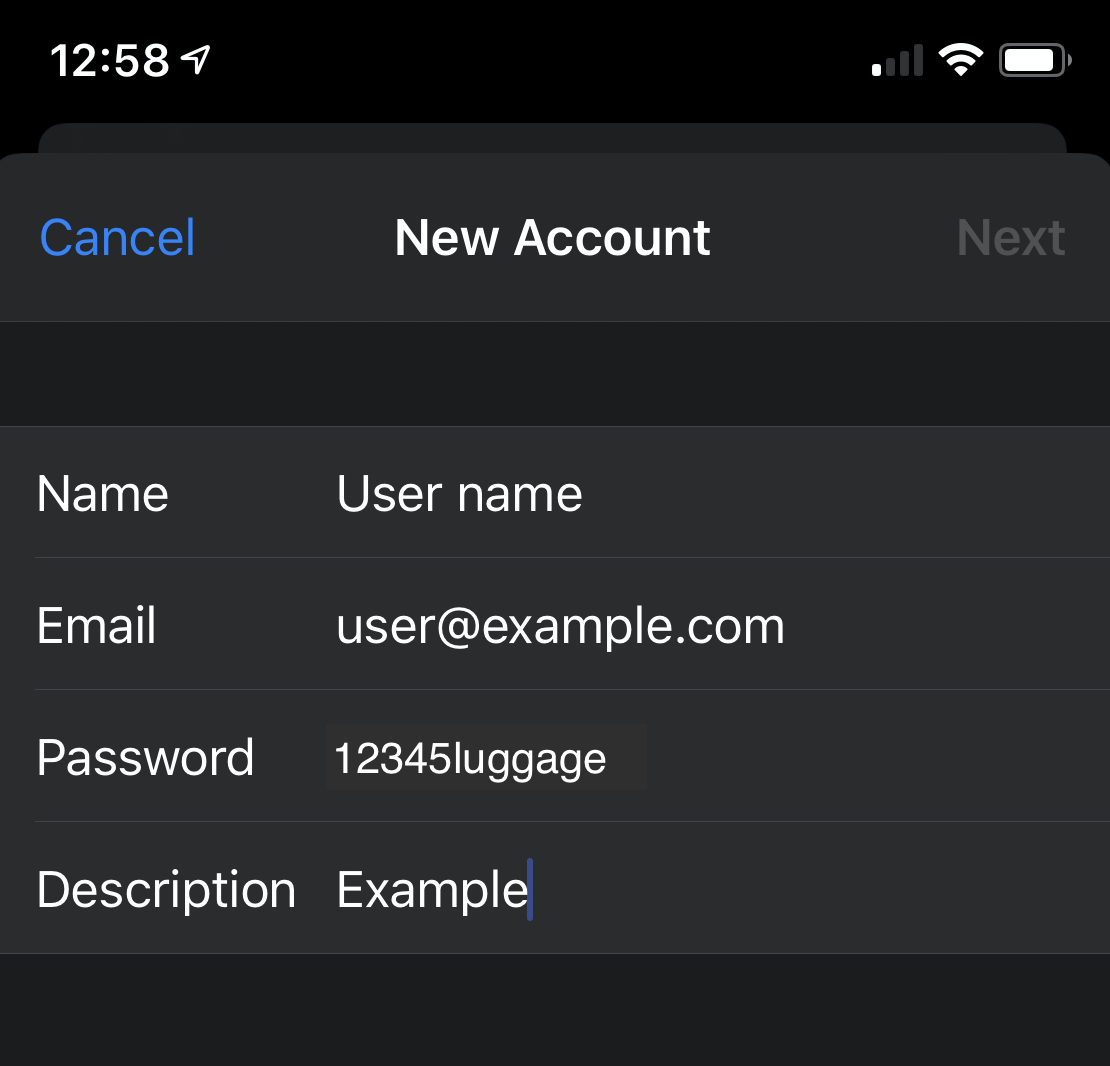
-
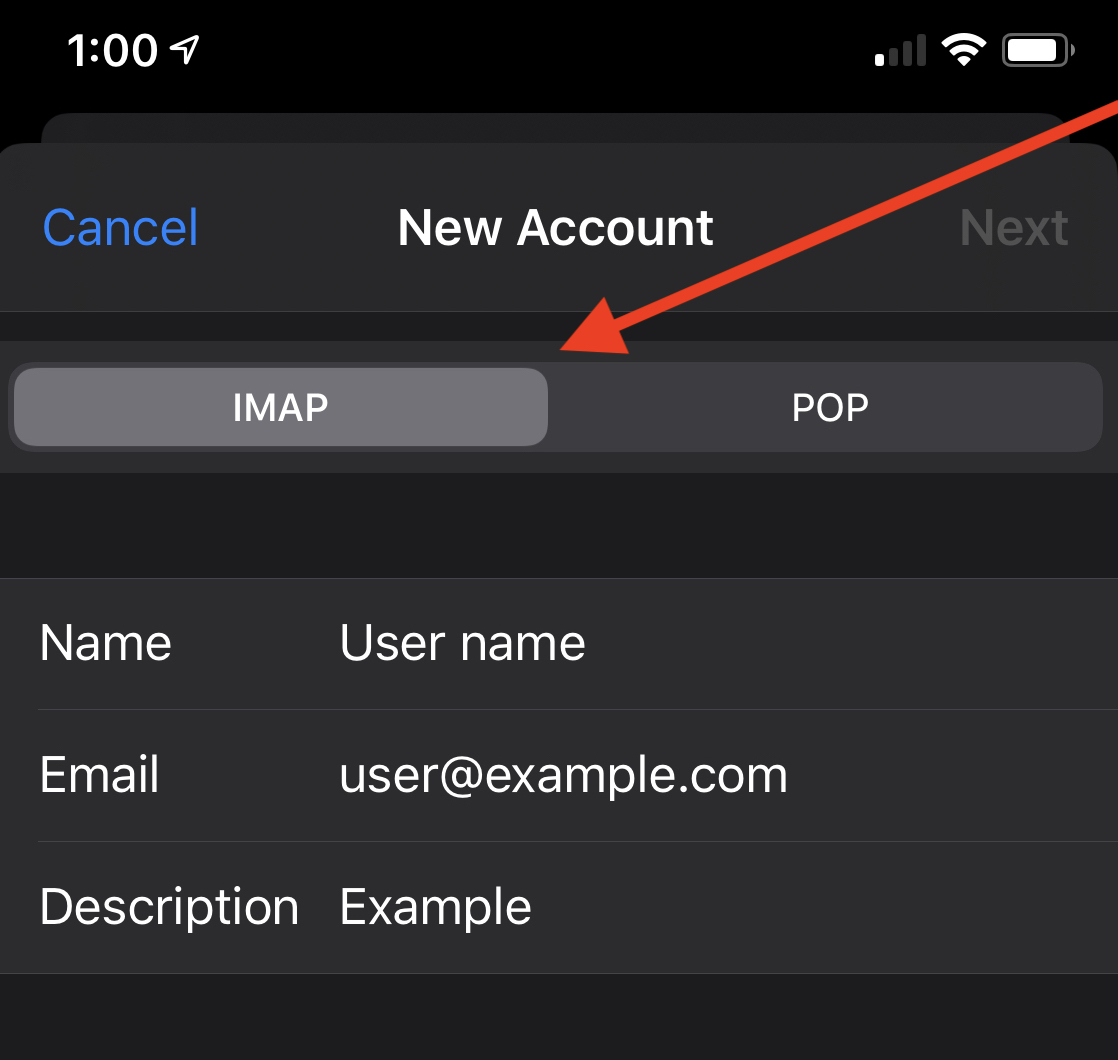
Use the toggle at the top of the screen to select a mailbox type. Verify all of the information for your account.
Note:We recommend that you select the IMAP mailbox type. If you select the POP3 mailbox type, the mobile device’s mail client will download all of the account’s email messages, and then remove the messages from the server. You will not be able to access those messages from any other mail client.
-
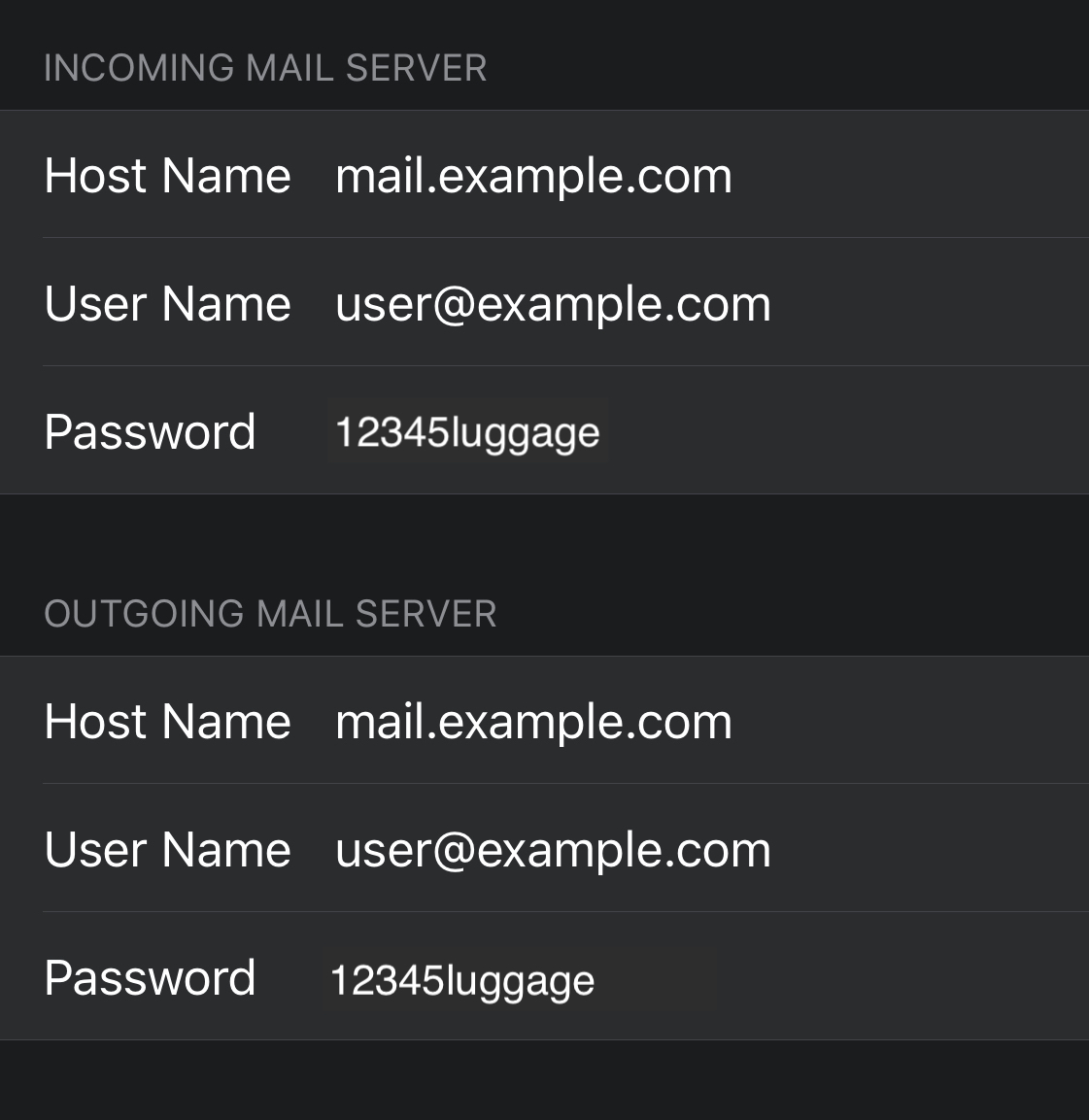
Enter the following information in Incoming Mail Server and Outgoing Mail Server text boxes:
- In the Host Name text box, enter the domain for the email account.
- In the User Name text box , enter your email address.
- In the Password text box , enter the password for the email account.
- Tap Next to proceed to the next screen in the New Account interface.
-
Tap the Notes toggle to disable the Notes application for the account.
-
Tap Save to complete the account setup process.
- 335 Users Found This Useful
Related Articles
Powered by WHMCompleteSolution
